通过多模态输入提升提示词效果
学习目标
通过在提示词中利用多模态输入来优化 AI 响应。
我们已经掌握了精炼基于文本的提示词以获取结构化信息的技巧。但是,如果一张图片能让您的 LLM 的工作轻松许多呢?在现实世界中,问题往往带有视觉线索。本课将向您展示如何通过使用多模态输入(即同时包含文本和图像)为您的 LLM 提供这种视觉上下文。我们将探讨如何直接在 SAP AI Launchpad 中实现,以及如何通过使用 SAP Cloud SDK for AI 扩展我们的代码来实现,从而获得更智能、更准确的 AI 解决方案。
为什么多模态输入很重要
想象一位客户报告机器损坏。他们可以用文字描述,但如果同时附上损坏部件的照片,问题就会清晰得多。通过允许您的提示词同时接受文本和图像,您就为 LLM 提供了完整的画面,这可以带来:
更好的理解: LLM 能够"看到"您的意思,减少混淆。
更准确的结果: 视觉信息有助于确认细节或揭示仅凭文字可能遗漏的问题。
解决新问题: 这为 AI 帮助处理需要视觉和文本分析的任务(例如质量检查或维护)开辟了可能性。
generative AI hub 配合 SAP AI Launchpad 和 SAP Cloud SDK for AI,使这一强大的能力变得易于使用。
SAP Launchpad 中的多模态提示词
您并不总是需要编写代码才能使用多模态提示词。SAP AI Launchpad 提供了一个友好的用户界面,您可以在其中轻松地组合文本和图像。它支持许多多模态模型,例如 GPT-4o,让您能够以可视化方式创建和测试这些高级提示词。
要查看哪些模型支持多模态模式,请参阅 Model Library 和模型卡。
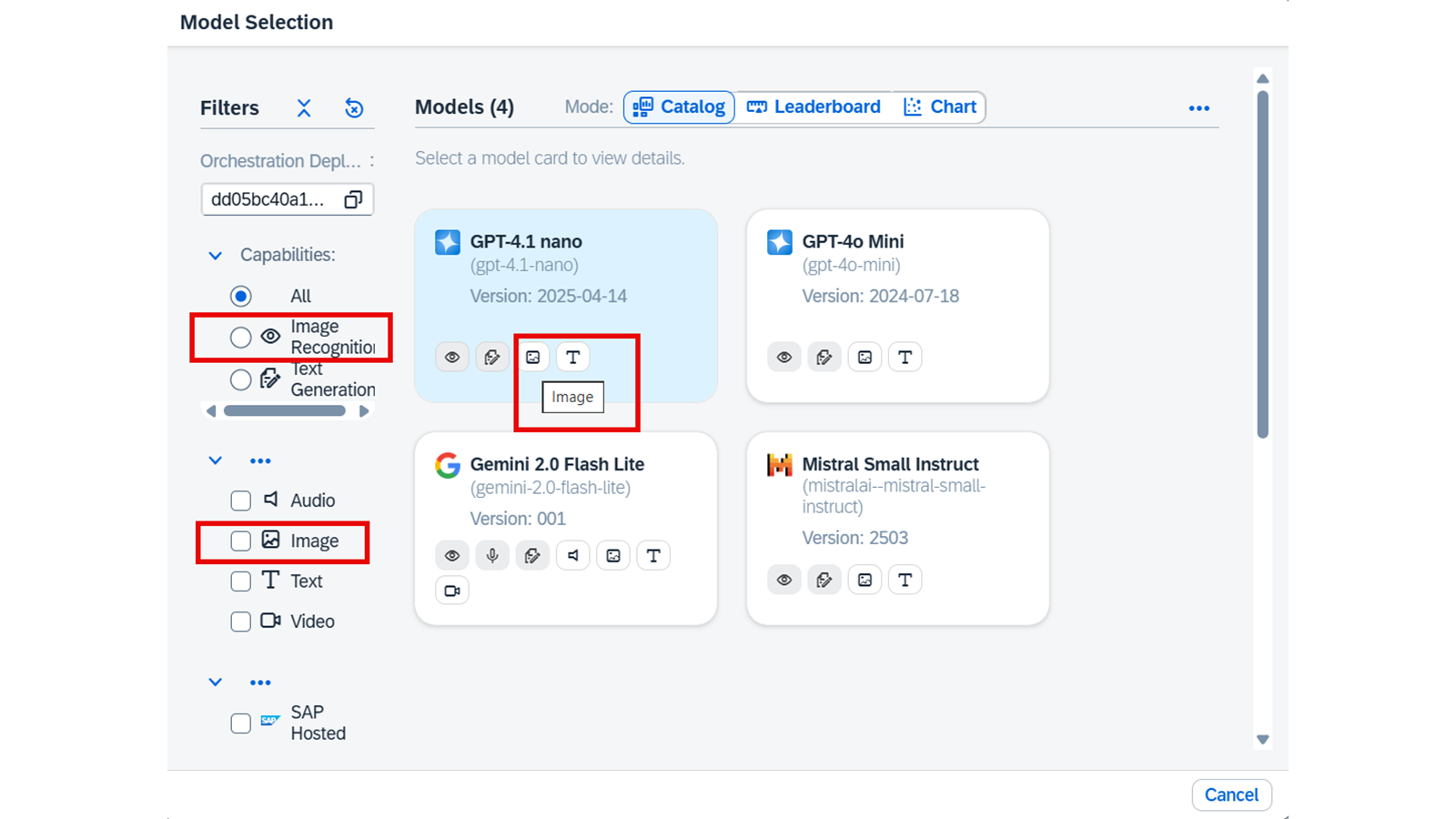
让我们看看这在 Prompt Editor 中的呈现方式:
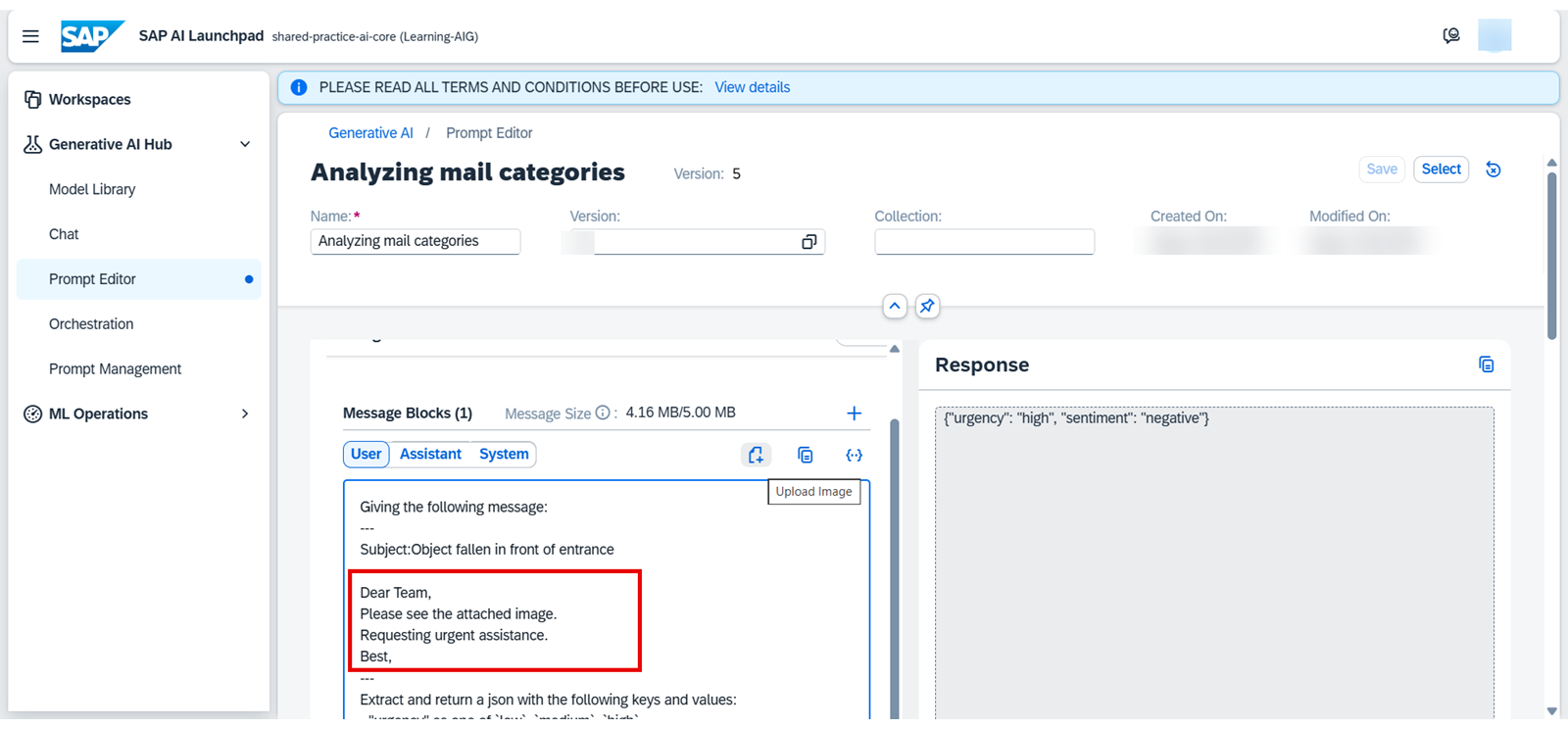
在 Prompt Editor 中,您输入了一封示例电子邮件以及指示 LLM 提取包含紧急程度和情绪的 JSON 输出的指令。您会注意到一个 "Upload Image" 按钮。这就是您可以为提示词添加视觉组件的地方。
对于这种纯文本输入,AI 的响应可能是:{"urgency": "high", "sentiment": "neutral"}。
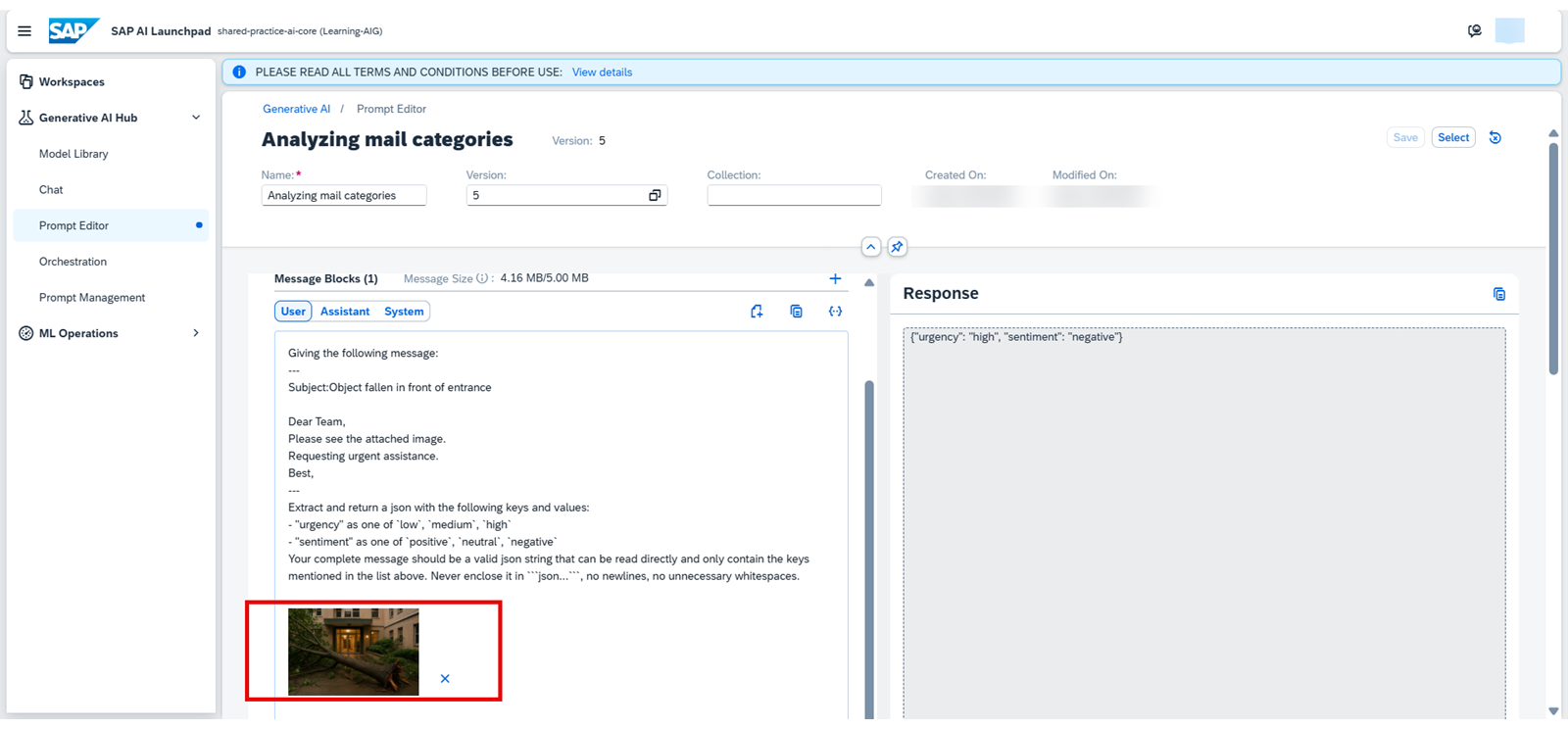
在这里,点击 "Upload Image"(或拖放)之后,一张小的嵌入式图像现在直接显示在输入文本区域内。这张显示入口处有一棵倒下的树的图片,现在成为了提示词的一部分。
现在,响应将类似于:{"urgency": "high", "sentiment": "negative"}
您可以看到,投诉文本非常短,但有了这些额外的视觉信息,AI 往往能够给出更精确的响应。
使用 SAP Cloud SDK for AI 的多模态提示词
对于以编程方式访问并将多模态能力集成到您的自定义应用中,您可以使用 SAP Cloud SDK for AI。主要的变化在于我们如何定义发送给 LLM 的用户消息。UserMessage 现在不再只是一个文本字符串,而是可以接受一个内容部分列表,其中每个部分可以是文本或图像 URL。
以下是我们如何调整 send_request 函数和提示词(prompt_13_multimodal)以包含图像:
# We need to import TextContent and ImageUrlContent for multimodal messages
from gen_ai_hub.orchestration.models.message import SystemMessage, UserMessage, TextContent, ImageUrlContent
from gen_ai_hub.orchestration.models.template import Template, TemplateValue
from gen_ai_hub.orchestration.service import OrchestrationService
from functools import partial # Imported for consistency with prior lesson code

# The send_request function is updated to accept an optional 'image_url'
def send_request(prompt: str, _print: bool = True, _model: str = 'meta--llama3-70b-instruct', image_url: Optional[str] = None, **kwargs):
# We create a list to hold all parts of our message (text and optional image)
content_parts = []

# If an image URL is provided, we add it as an ImageUrlContent part
if image_url:
content_parts.append(ImageUrlContent(url=image_url))

# We always add the text prompt as a TextContent part
content_parts.append(TextContent(text=prompt))

# Now, our OrchestrationConfig uses a UserMessage with this list of content_parts
config = OrchestrationConfig(
llm=LLM(name=_model),
template=Template(messages=[UserMessage(content=content_parts)]) # Key change here!
)
template_values = [TemplateValue(name=key, value=value) for key, value in kwargs.items()]
answer = orchestration_service.run(config=config, template_values=template_values)
result = answer.module_results.llm.choices[0].message.content
if _print:
print(f"<-- PROMPT TEXT --->\n{prompt}")
if image_url:
print(f"<-- IMAGE URL --->\n{image_url}")
print(f"<--- RESPONSE --->\n{result}")
return result

# --- Updated Multimodal Prompt (prompt_13_multimodal) ---
prompt_13_multimodal = """Your task is to classify messages and the provided image.
Here are some examples:
---
{{?few_shot_examples}}
---
This is an explanation of `urgency` labels:
---
{{?guide_urgency}}
---
This is an explanation of `sentiment` labels:
---
{{?guide_sentiment}}
---
This is an explanation of `support` categories:
---
{{?guide_categories}}
---
Giving the following message and considering the image for visual context:
---
{{?input}}
---
extract and return a JSON with the following keys and values:
- "urgency" as one of {{?urgency}}
- "sentiment" as one of {{?sentiment}}
- "categories" list of the best matching support category tags from: {{?categories}}
Your complete message should be a valid json string that can be read directly and only contain the keys mentioned in the list above. Never enclose it in ```json...```, no newlines, no unnecessary whitespaces.
"""

# --- Example Usage (requires 'option_lists', 'examples', 'guides', 'mail' to be defined from prior lessons) ---
# For illustration purposes, let's assume these are set up:
# option_lists = { "urgency": ["low", "medium", "high"], ... }
# examples = "..." # Formatted few-shot examples
# guides = { "guide_urgency": "...", ... }
# mail = {"message": "The HVAC system is making a loud banging noise and no longer cooling. It needs immediate attention."}

# This URL should point to a real image accessible by the LLM
example_image_url = "https://example.com/assets/faulty_hvac_part.png" # Replace with a real image URL

# We create our partial function, now including the image_url
f_13_multimodal = partial(
send_request,
prompt=prompt_13_multimodal,
# Pass all our usual options, few-shot examples, and guides
**option_lists,
few_shot_examples=examples,
**guides,
image_url=example_image_url # This is the crucial addition!
)

# When you call this function, the LLM receives both text and the image
# response_multimodal = f_13_multimodal(input=mail["message"])
# print("\nReceived Multimodal Response:", response_multimodal)
理解代码变更
新增导入: 我们现在从 gen_ai_hub.orchestration.models.message 导入 TextContent 和 ImageUrlContent。这些特殊类型告诉 SDK 我们正在发送不同种类的内容。
send_request 更新:
它现在接受一个可选的 image_url 参数。
在函数内部,我们创建了一个名为 content_parts 的列表。
如果提供了 image_url,我们就使用 ImageUrlContent(url=image_url) 将其添加到 content_parts 中。
原始文本提示词也使用 TextContent(text=prompt) 添加到 content_parts 中。
我们 OrchestrationConfig 中的 UserMessage 现在接收这个 content_parts 列表。这告诉 SDK 将图像和文本一起发送给 LLM。
prompt_13_multimodal: 提示词本身的文本略有更新,以明确告诉 LLM"对消息和所提供的图像进行分类",并考虑"图像作为视觉上下文"。这有助于引导 LLM 的注意力。
调用该函数: 当我们使用 partial 创建 f_13_multimodal 时,我们只需将 image_url=example_image_url 作为一个参数包含进去。现在,每次调用 f_13_multimodal 时,它都会将来自 mail["message"] 的文本连同 example_image_url 处的图像一起发送给 LLM。
评估多模态响应
与纯文本提示词一样,评估多模态响应也至关重要。您将使用与之前相同的评估函数来检查 JSON 输出格式是否正确,以及提取出的类别、情绪和紧急程度是否准确。关键区别在于,现在 LLM 有更多信息(图像)来得出答案,因此您判断何为正确的"基准真相"隐式地包含了该视觉上下文。这有助于您确认添加图像确实提升了 AI 的理解能力和准确性。
实际应用
generative AI hub 这一多模态能力的一个实际应用,是能够通过文本、音频、图像和视频与用户交互的、基于 Web 的智能聊天机器人。它使用多模态 AI 模型返回具备上下文感知的响应。
本课总结
在本课中,您向前迈出了重要一步,学会了将多模态输入融入到您的生成式 AI 应用中。无论是使用直观的 SAP AI Launchpad,还是以编程方式使用 SAP Cloud SDK for AI,您现在都理解了如何为 LLM 提供文本和图像上下文。这种强大的方法能够带来更智能、更精确、上下文更丰富的响应,扩展了您可以在 SAP 生态系统中有效解决的实际业务问题的范围。